

Free Usage Guide for Cloud Computing
SimWorks Finite Difference Cloud Client User Manual
2026.03
Welcome to use SimWorks Finite Difference Cloud Client. This document uses the Windows software version as an example to guide you through downloading and trying out the software.
Currently SimWorks provides users free coupons. Users will receive four free cloud computing coupons at the beginning of each month, including:
- Basic CPU, suitable for hpc.c7a.2xlarge cloud computing specification (Intel 8 cores + 16G)
- Entry-level GPU, suitable for hpc.gntv100sxm32g.ip1.1x.28c56g cloud computing specification (Intel 28-core + 56G+1×V100)
- Advanced GPU, suitable for hpc.gntv100sxm32g.ip1.2x.56c112g cloud computing specification (Intel 56 cores + 112G + 2×V100)
- High-end GPU , suitable for hpc.gntv100sxm32g.ip1.4x.112c224g (Intel 112 cores + 224G + 4×V100)
Users can select the corresponding resources in the client for cloud computing according to their needs, and use the corresponding coupons to settle the calculation tasks after completion to use the software for free.
Table of Contents
1. Software Download and Installation
3. Create Simulation and Calculate
Software Download and Installation
You can log in to the SimWorks website: https://www.simworks.net/en/download,download the latest SimWorks installation file.
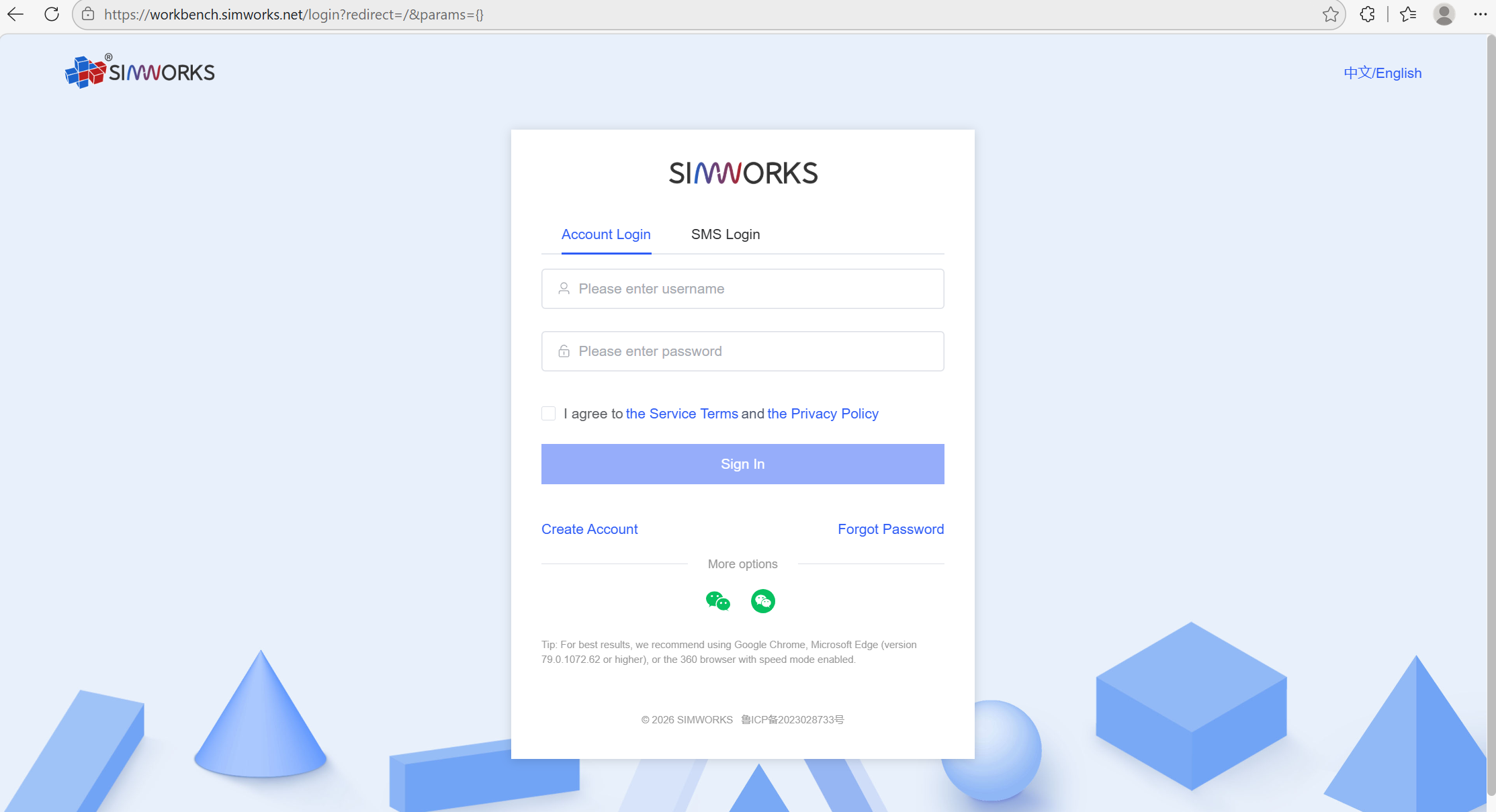
Note: You need to register and log in to the website before you can download the files.
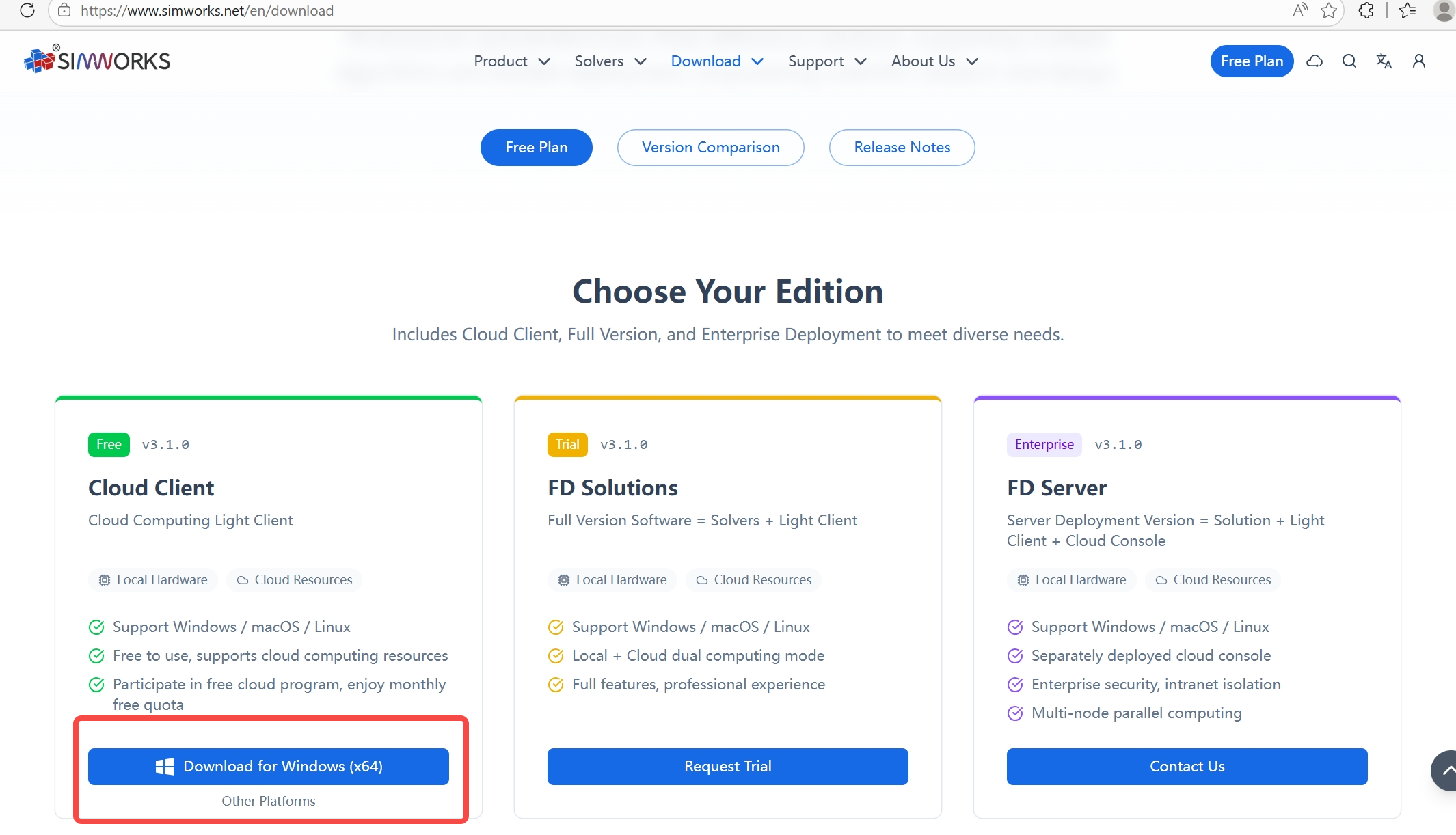
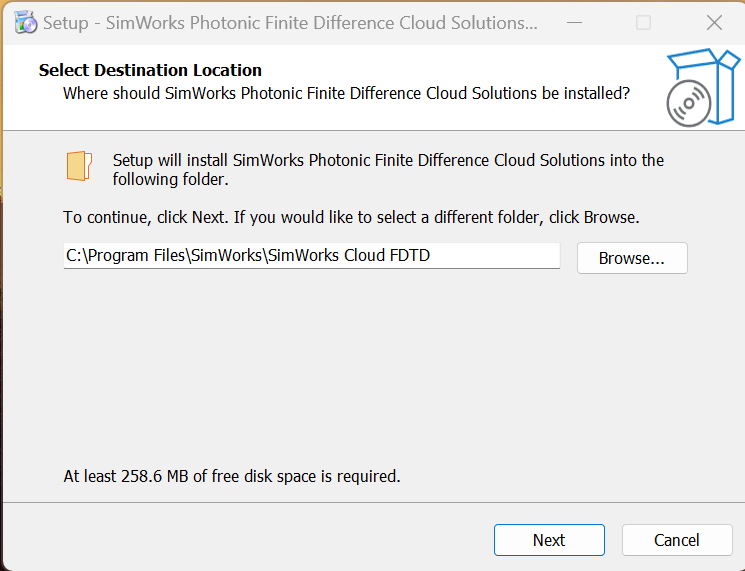
Open this installation file, click “Next” and follow the steps to complete the installation.
Choose Resource
Double-click the icon in your desktop, open the software.
After opening the software, click the "Resources" button in the "Home" tab, click the "Edit" button in the pop-up dialog box, and then click "Login", which will redirect you to the login interface of the Workbench Cloud Console. Enter your account information, and a success message confirms your login.
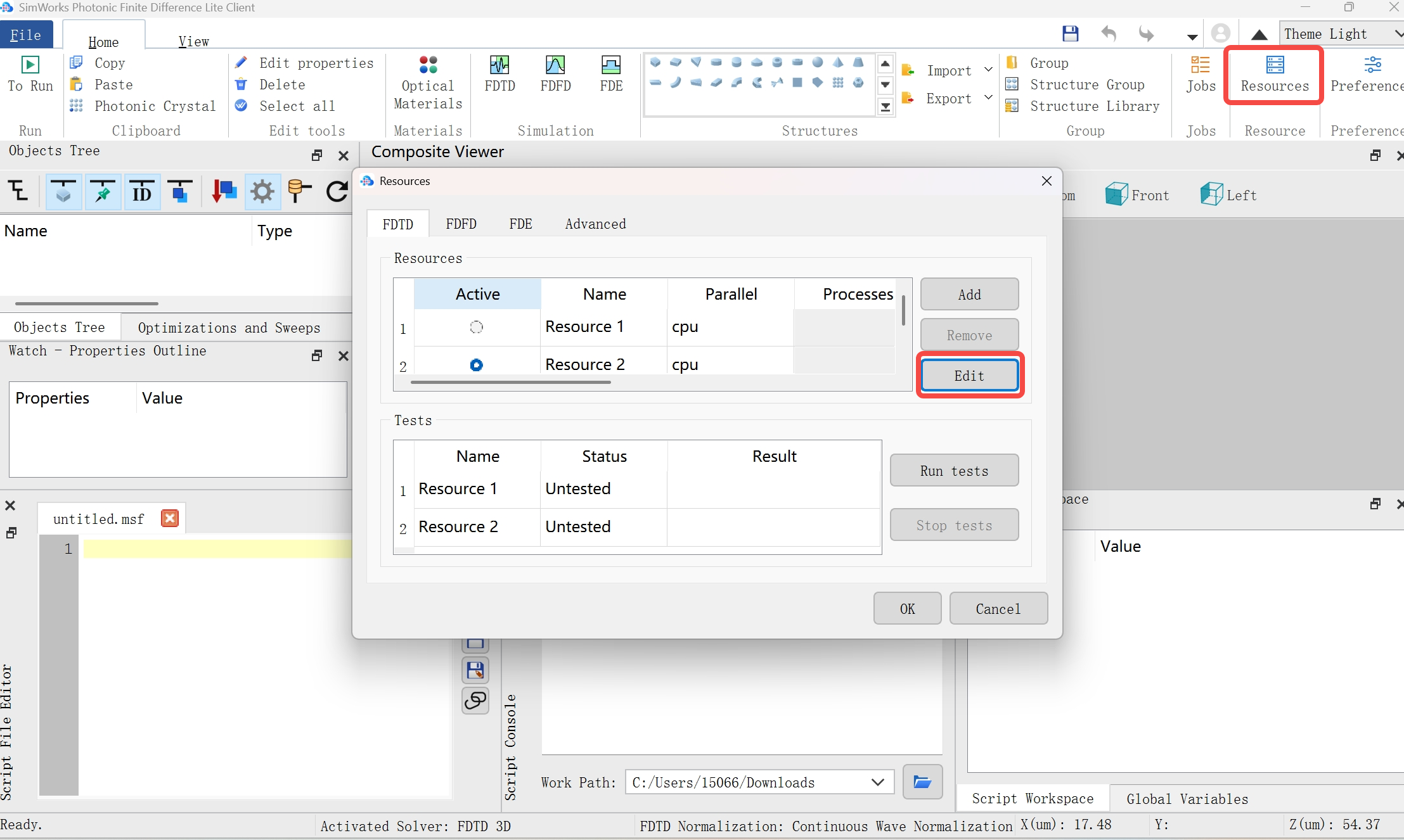
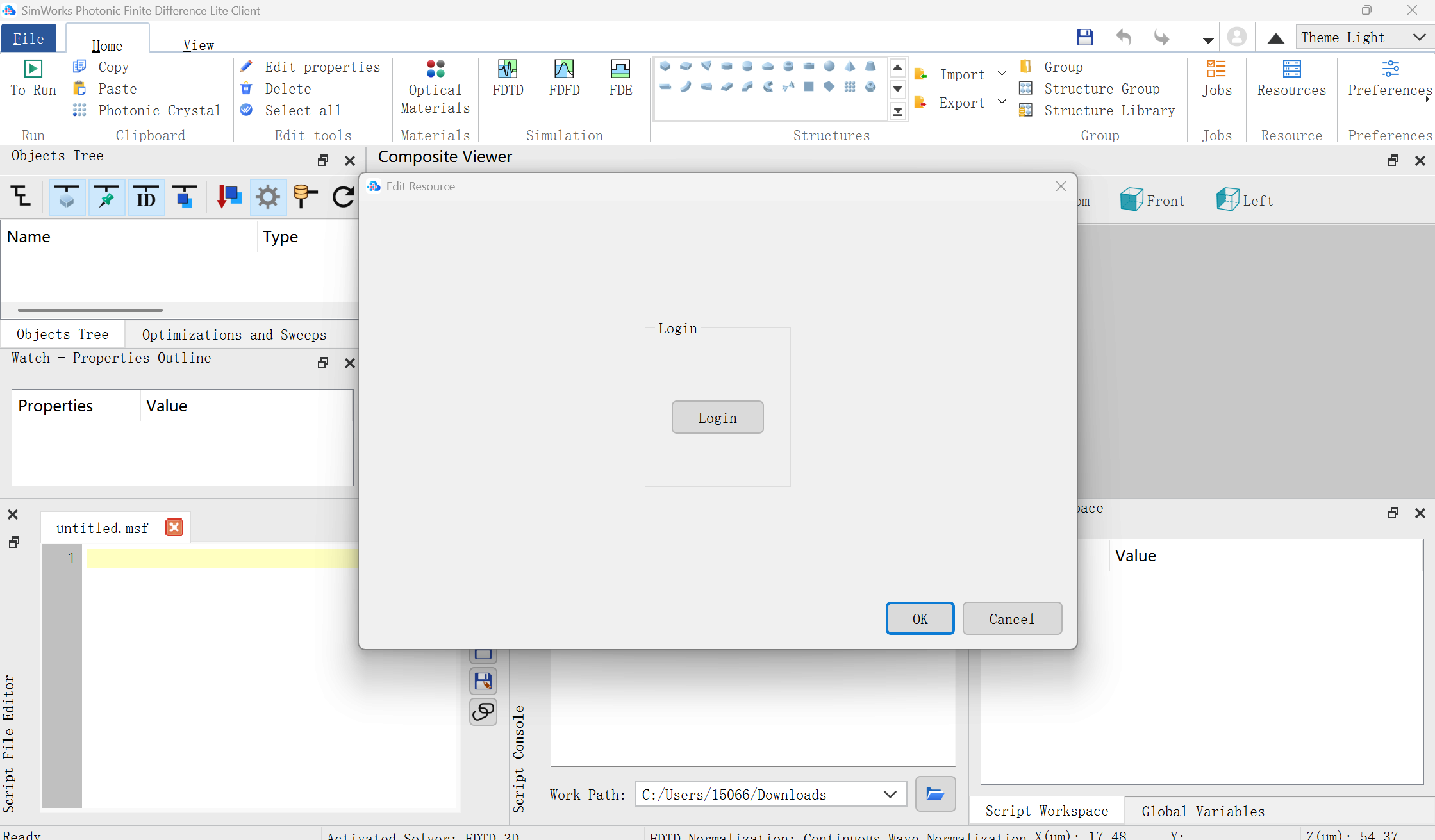
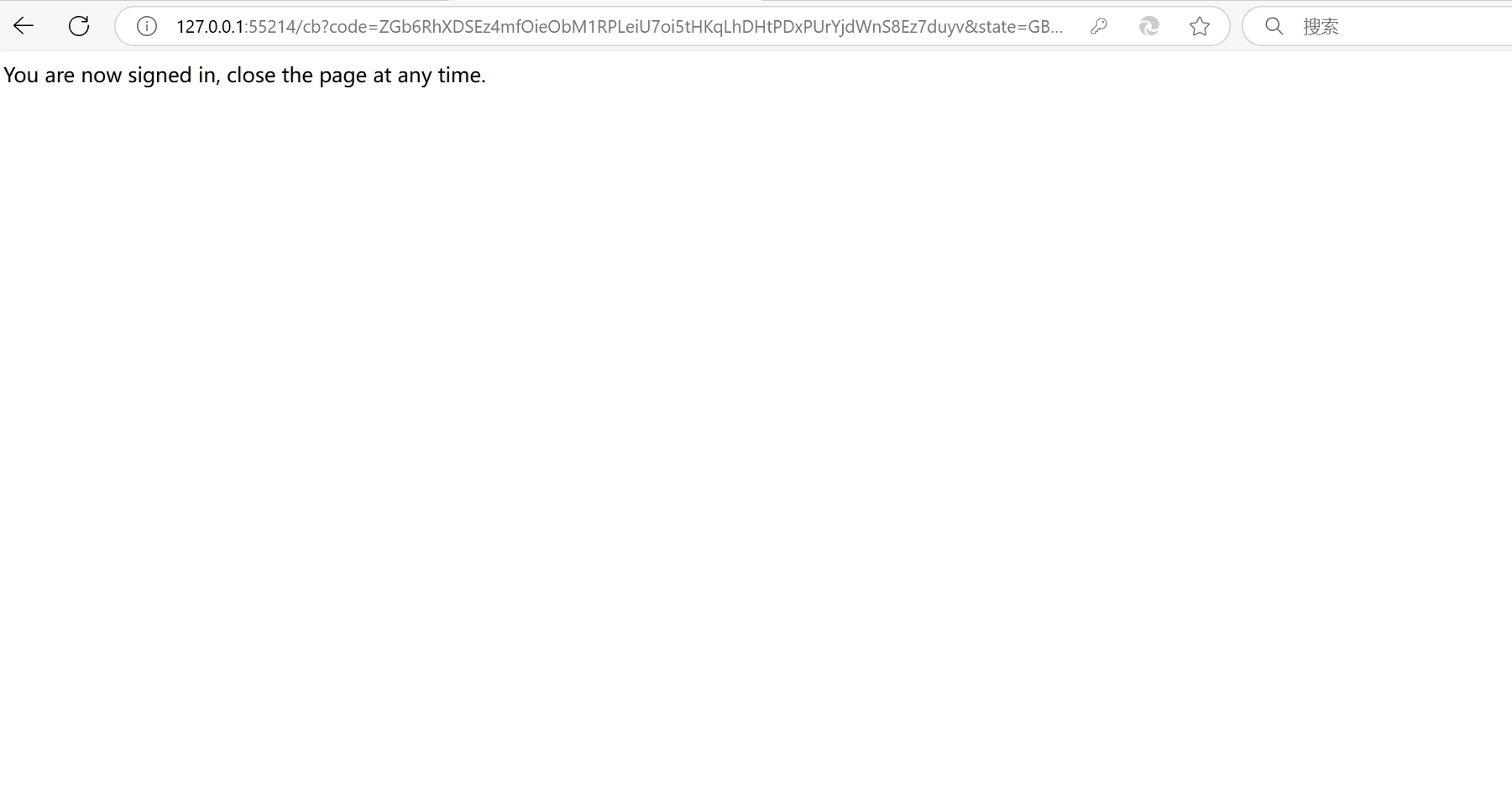
After successful login, Free Plan is selected by default in Plan, and the next four cloud computing specifications have free duration coupons, and you can also select other Plan to view or select other computing resources.
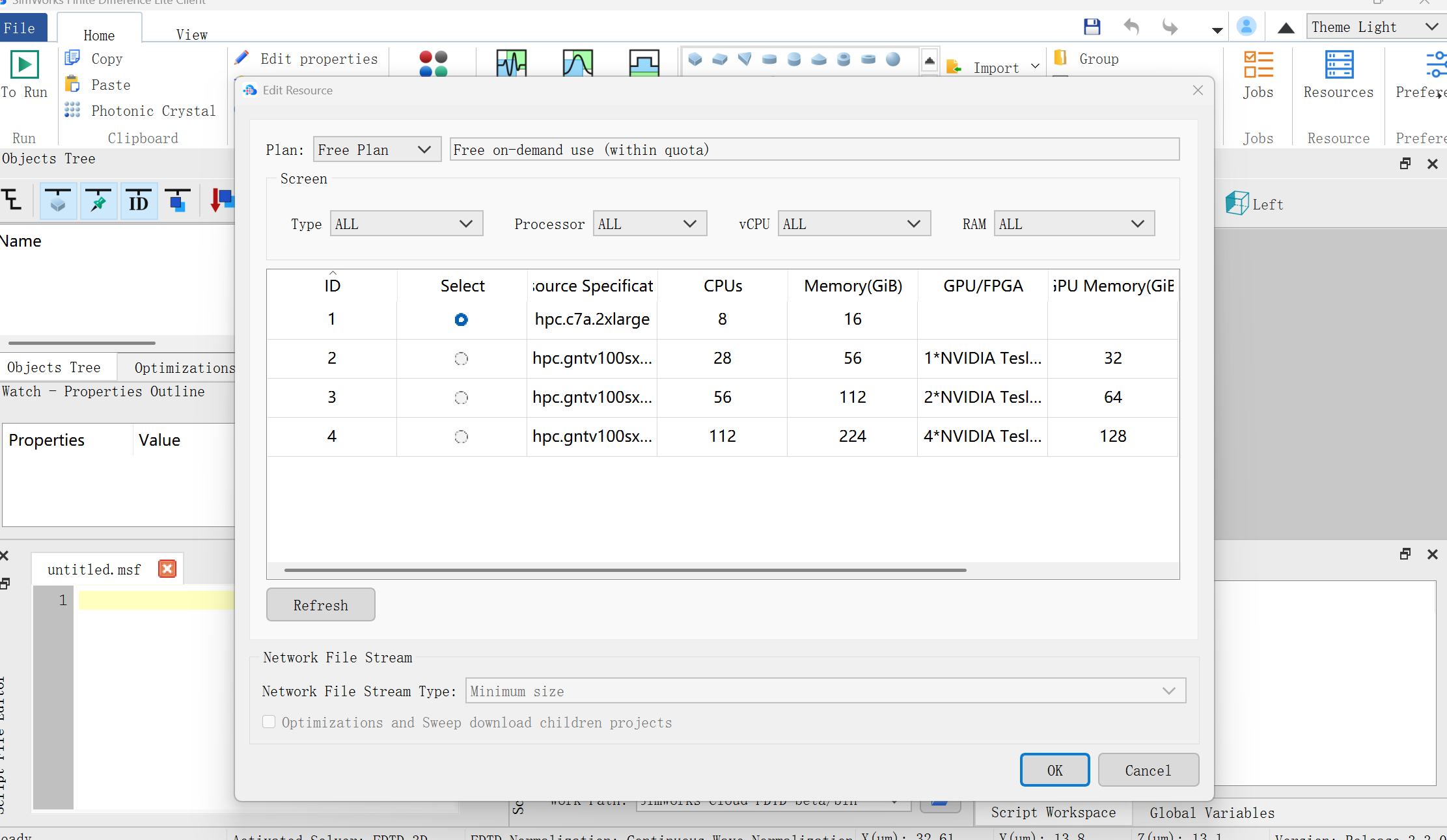
Note: if you do not select a cloud computing specification under the Free Plan category, the free coupon will be unavailable, and you must pay according to the computing duration after the simulation task ends to download the simulation results.
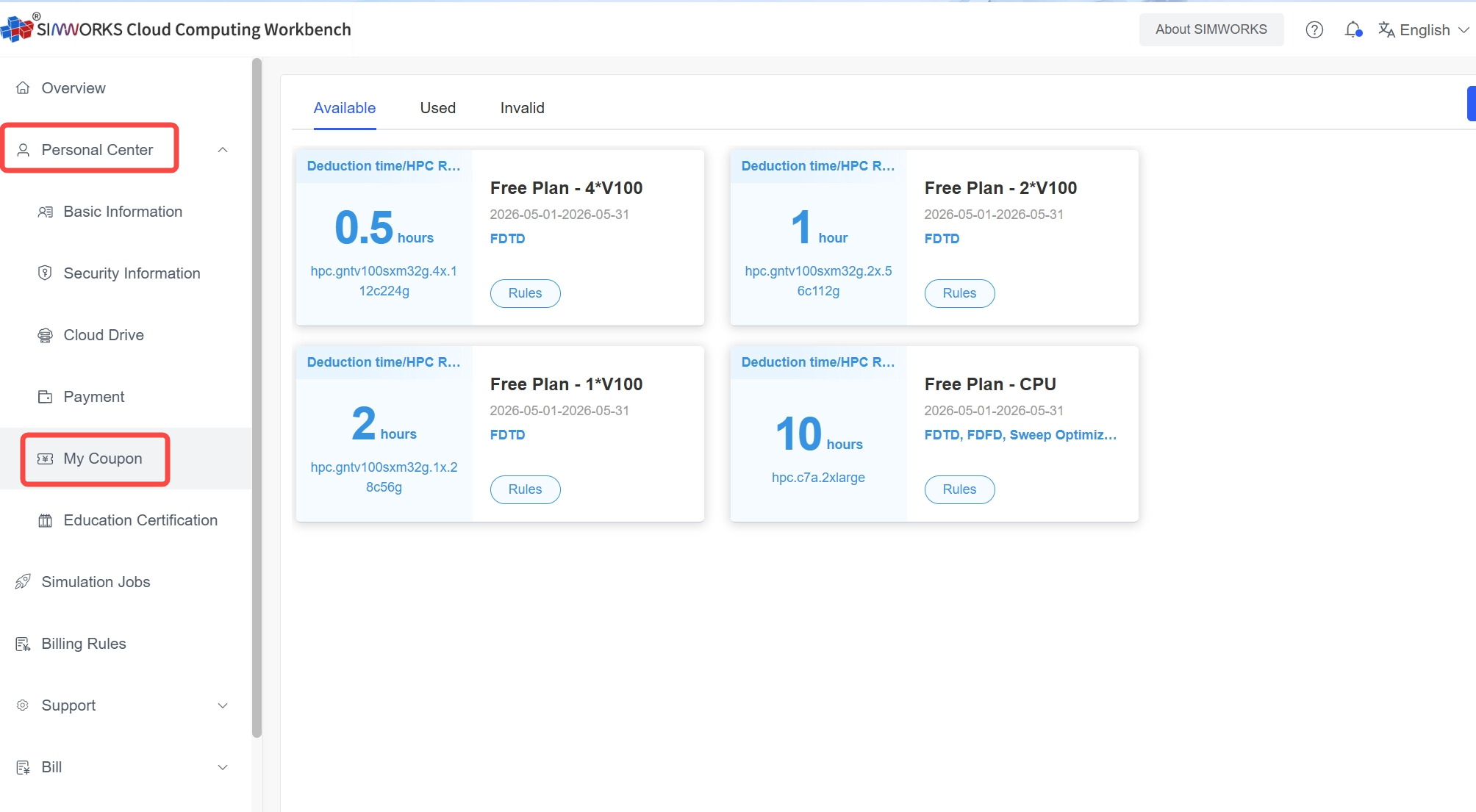
The current free use coupon is applicable to all SimWorks cloud computing specifications and supports all billable task types. You can also open the Workbench console https://workbench.simworks.net/ in the left sidebar "Personal Center" > "My Coupons" to view all available coupons.
Create Simulation and Calculate
You can create a new simulation task or open an existing project.
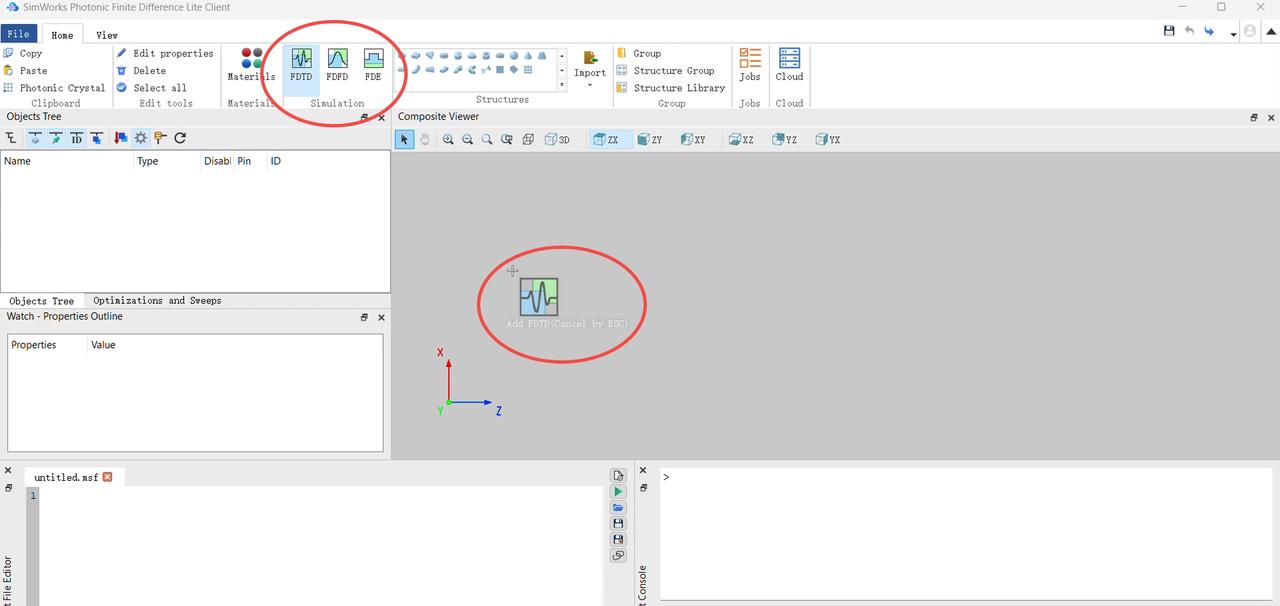
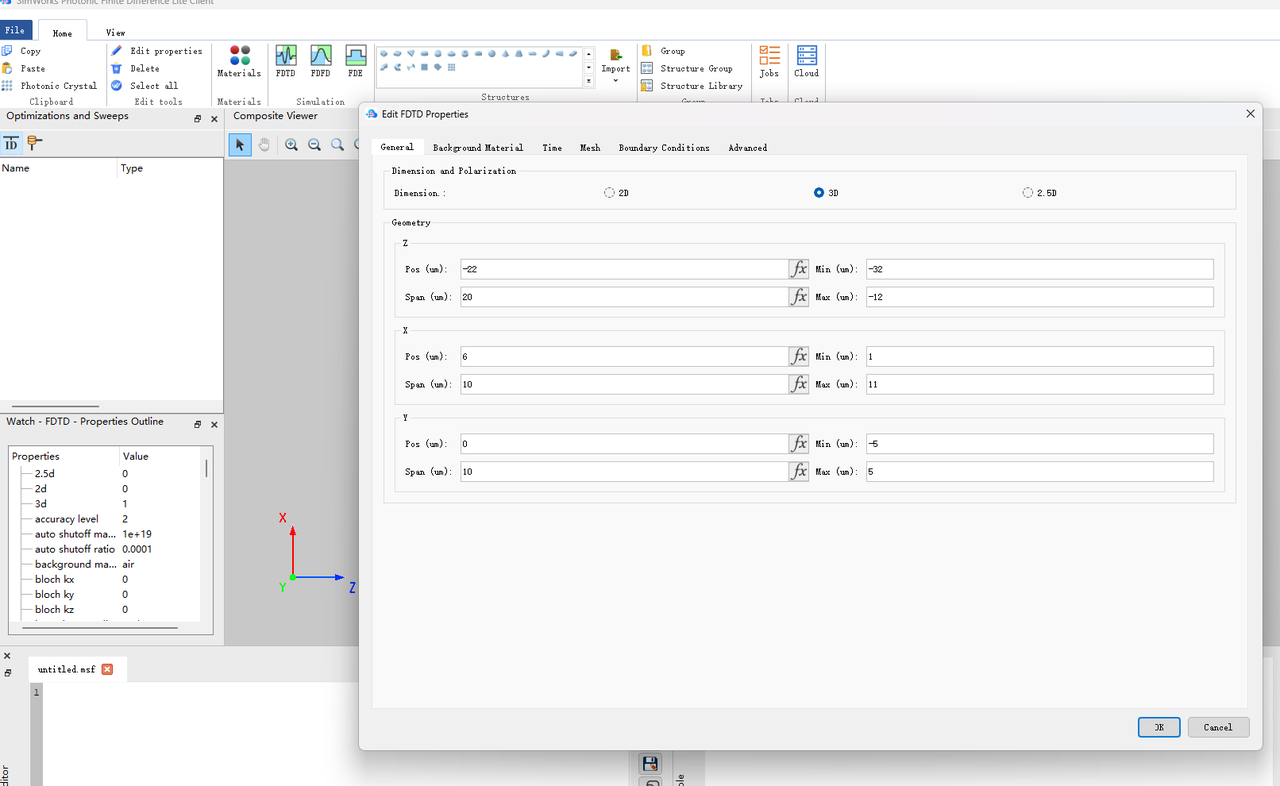
Set parameters and start your simulation project.
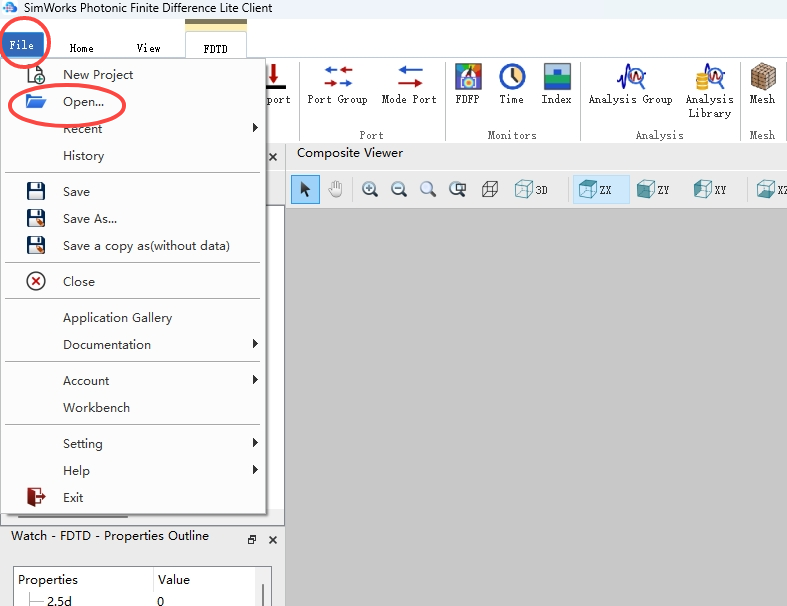
Or open an existing project, goto “File”>“Open”,choose your file (.mpps).
Click FDTD (or FDFD/FDE, depending on the type of your simulation), and then click "To Run" button.
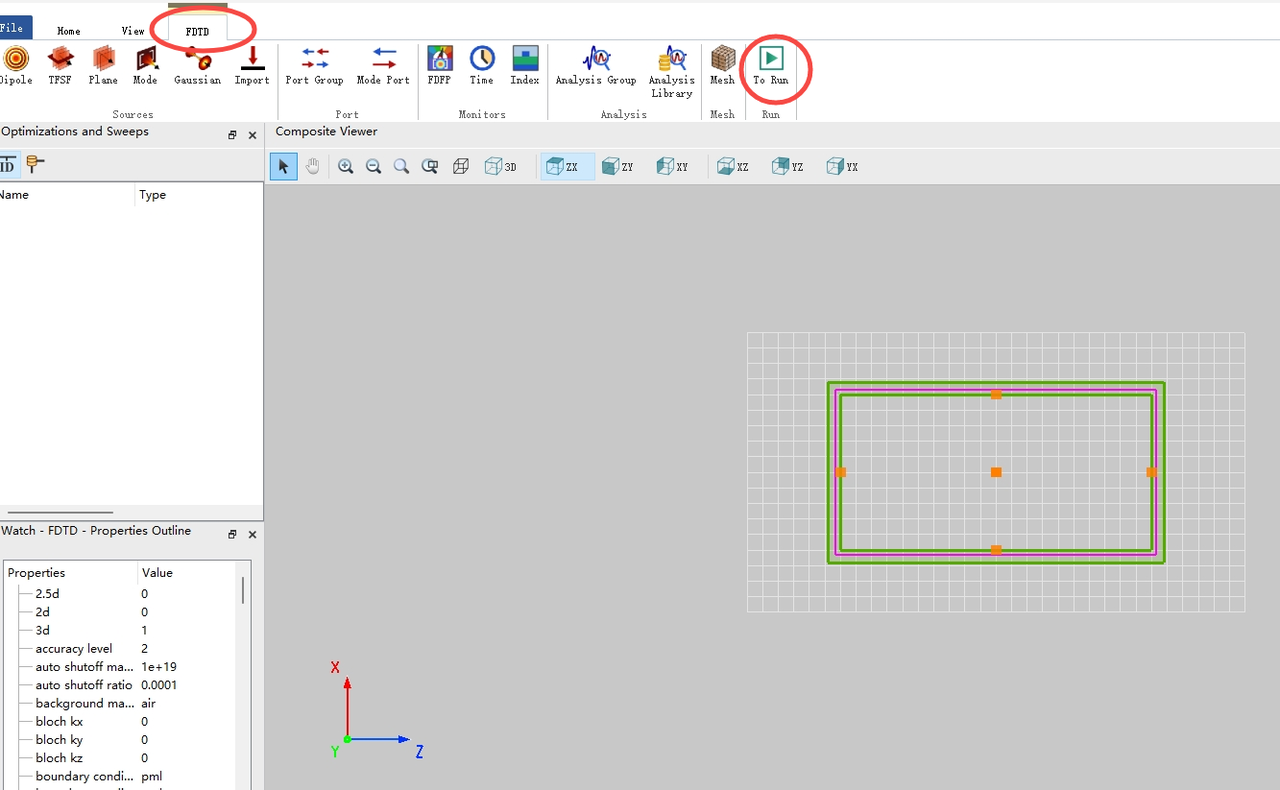
Save your simulation project.
Click "Run" button, run your simulation task. In the tab, it will display the process and compute speed.
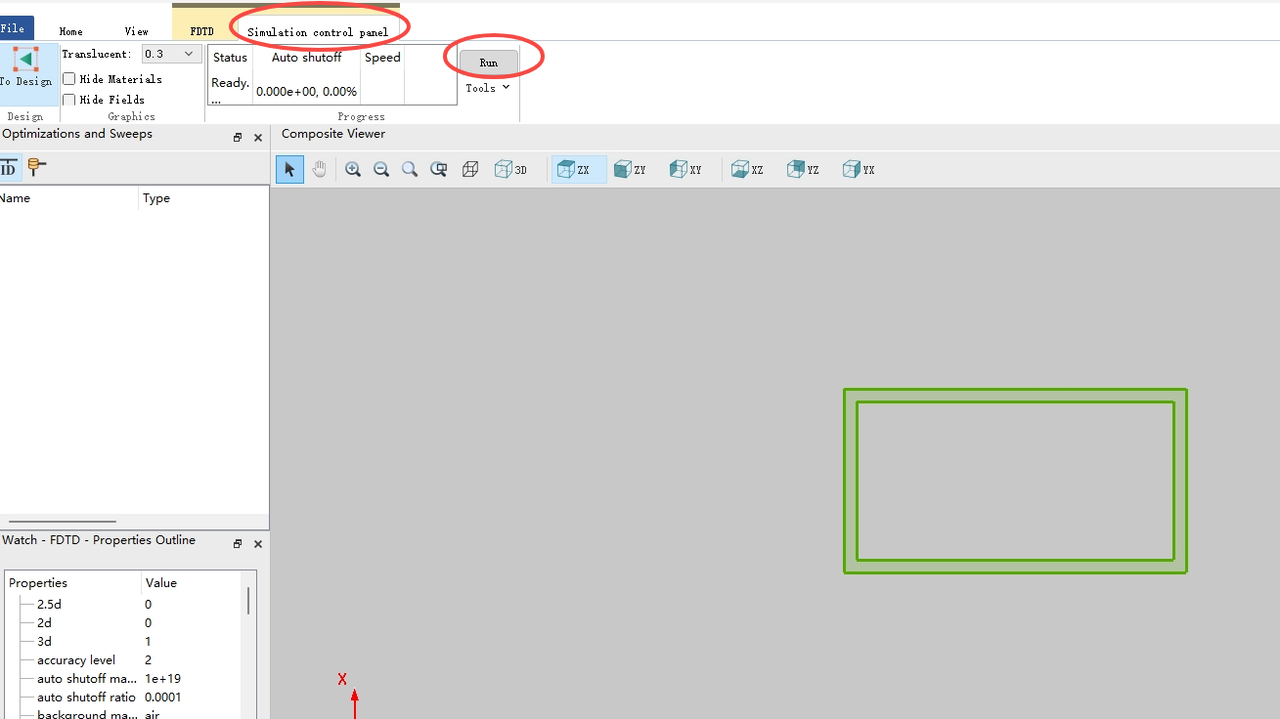
For more features, you can goto website:https://www.simworks.net/en/knowledge-base/knowledge-base_overview
Or check the video tutorials on "BiliBili":https://space.bilibili.com/3546652780529995
Payment with Coupons
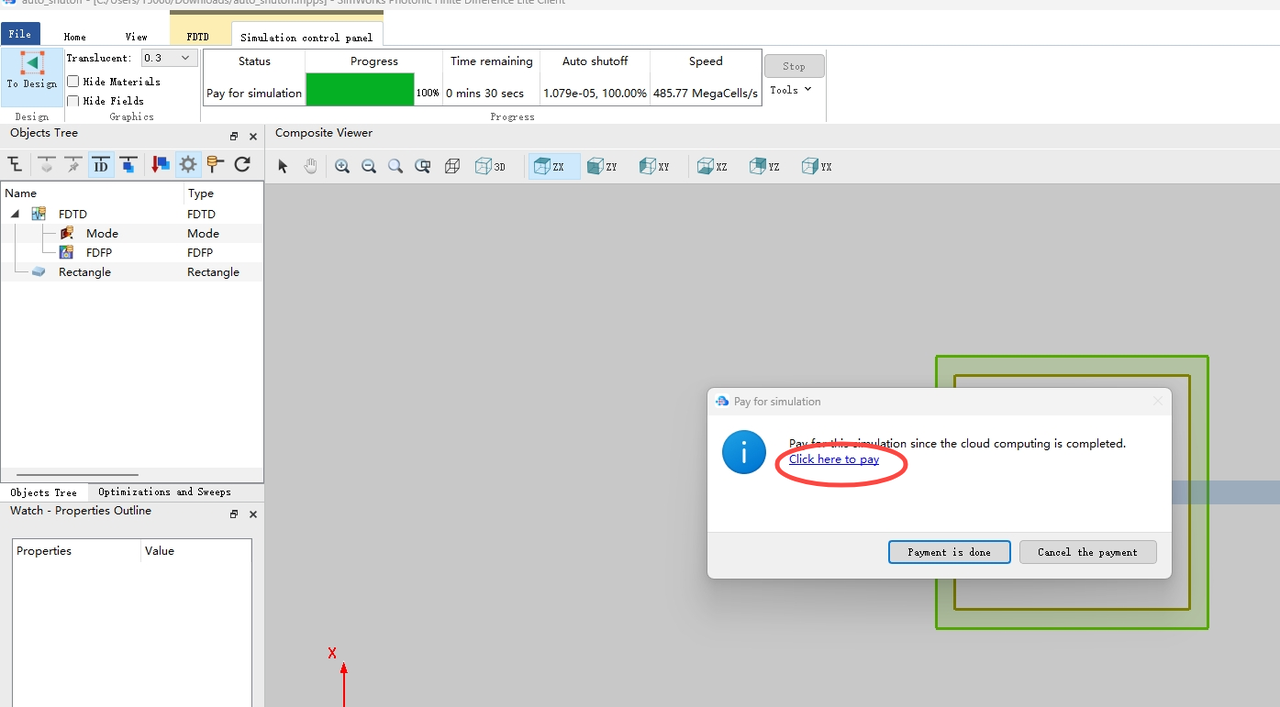
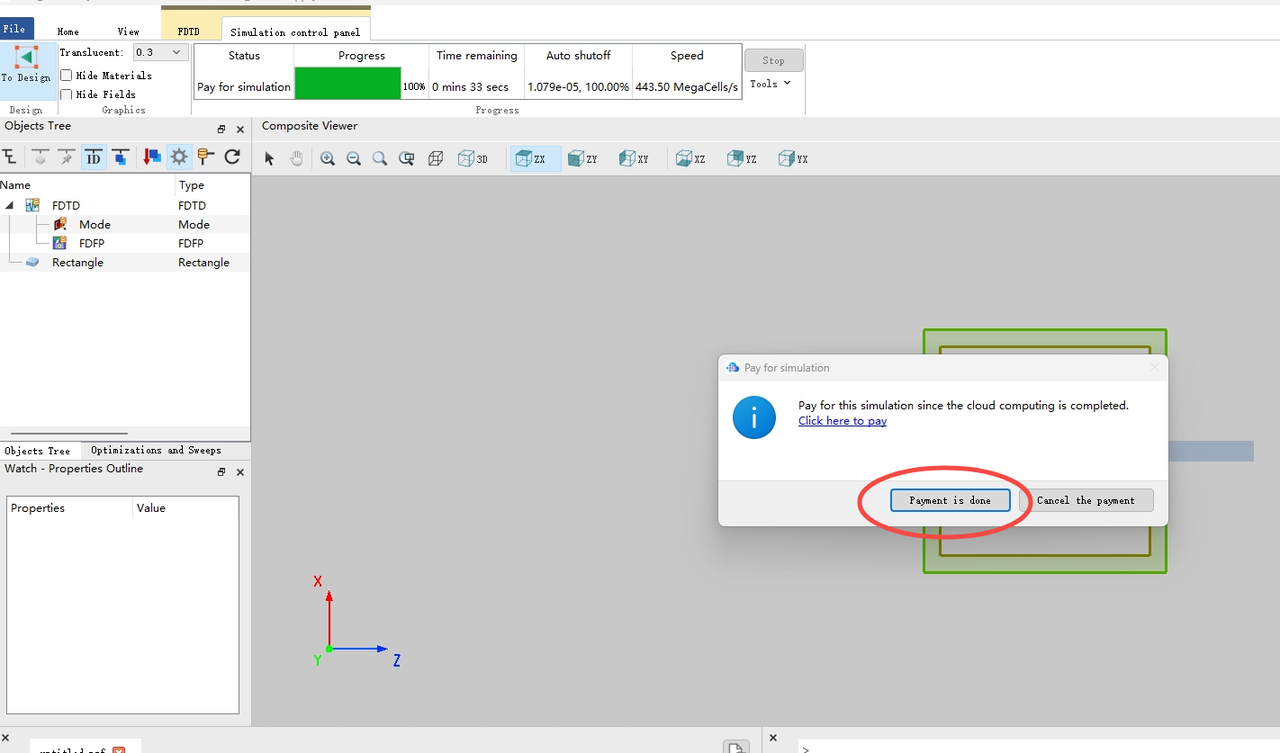
When the simulation is done, you can click "Click here to pay" button, after the payment is done, you can get the simulation results.
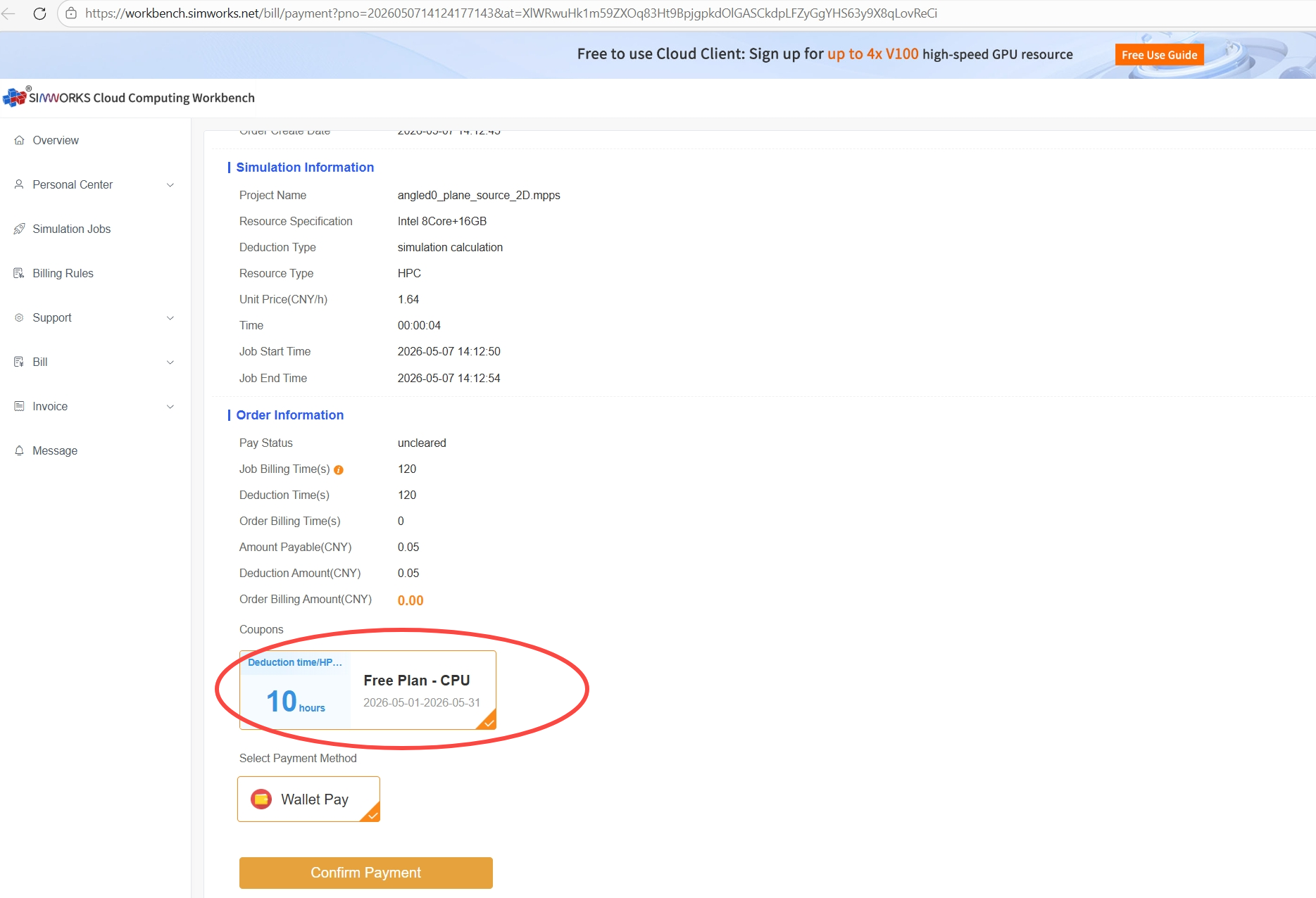
If you selected an resource specification in the Free Plan category, you may use the free coupon; for simulation tasks within 10 hours, select this coupon and click "Confirm Payment" to complete your order with no extra charge.
To make the payment process more convenient, you can select "Yes" for Automatic Payment and use of coupon deductions in the Personal Center -- Payment, and select the corresponding computing resource coupon. This will automatically trigger the payment process after your simulation task is over, using the selected coupon to automatically pay for it.
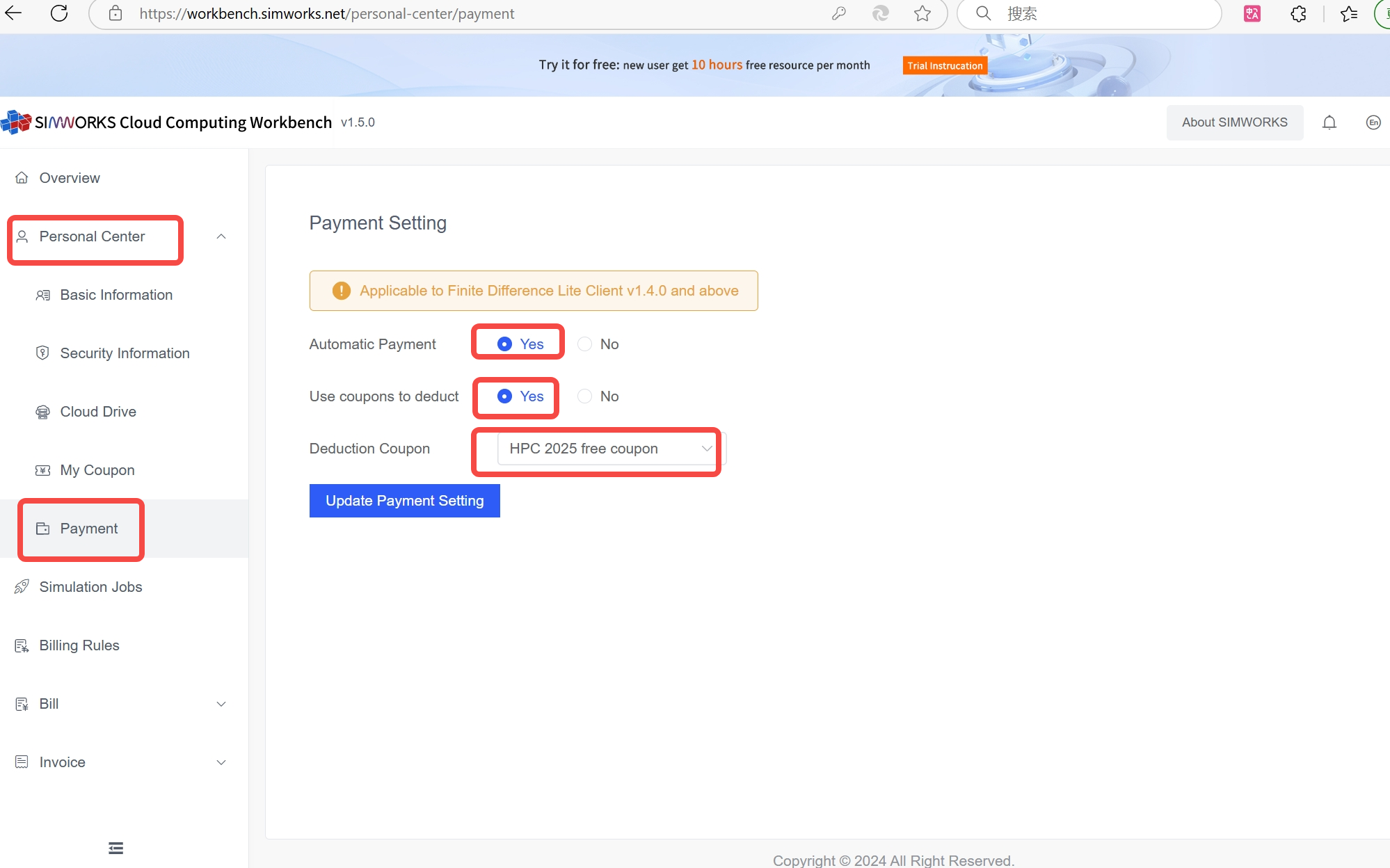
Note: We will automatically issue you four new coupons at the beginning of each month, at which point your old coupon will be reclaimed. If you run out of free time for your compute resources within this month, you will no longer be allowed to create simulation tasks using the compute resources until a new coupon is issued next month.
Download Results
The simulation results are saved in the project file(.mpps), and it will replaced the original project.
After payment is done, you need to Click the "Payment is done" button, and it will start to download your results.
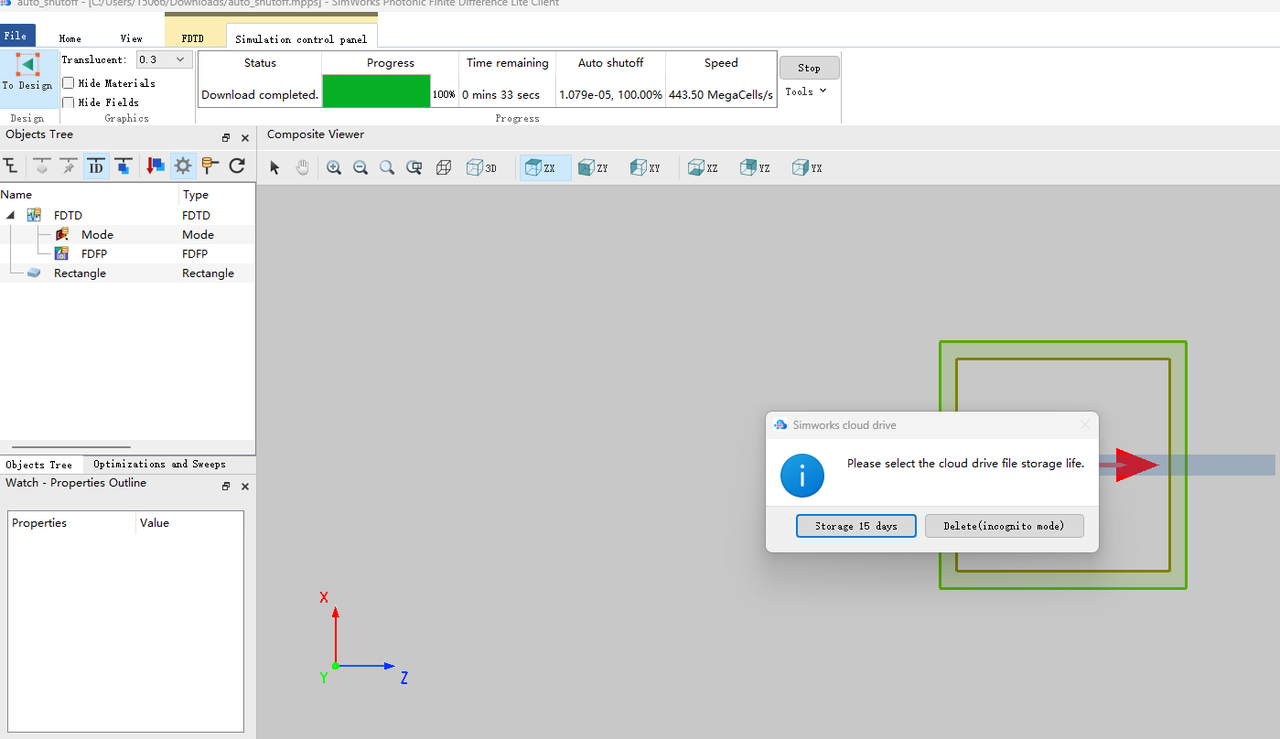
You can choose to store your simulation results in the cloud for 15 days, or delete them immediately.
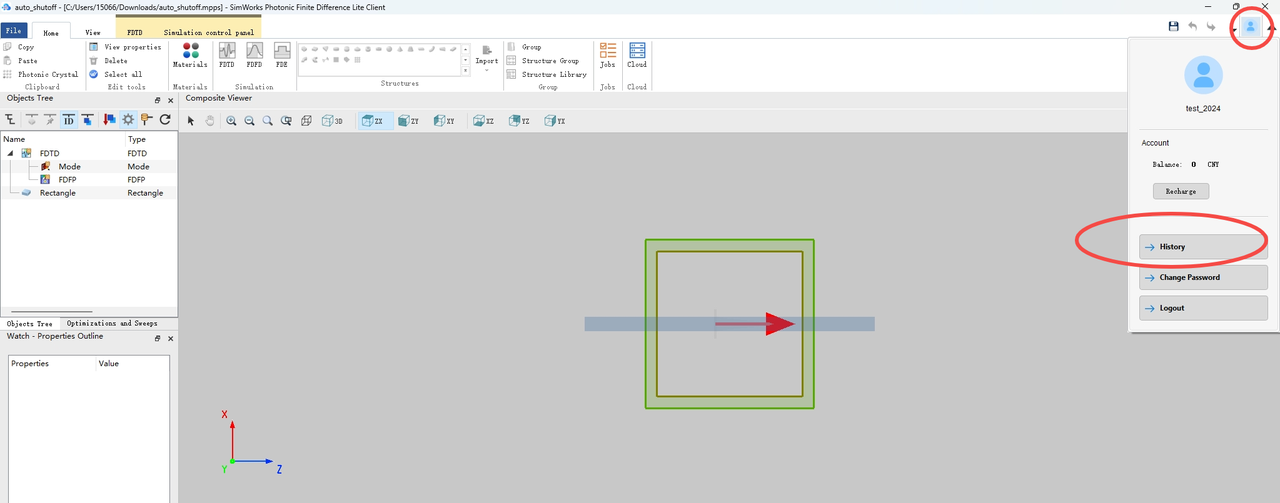
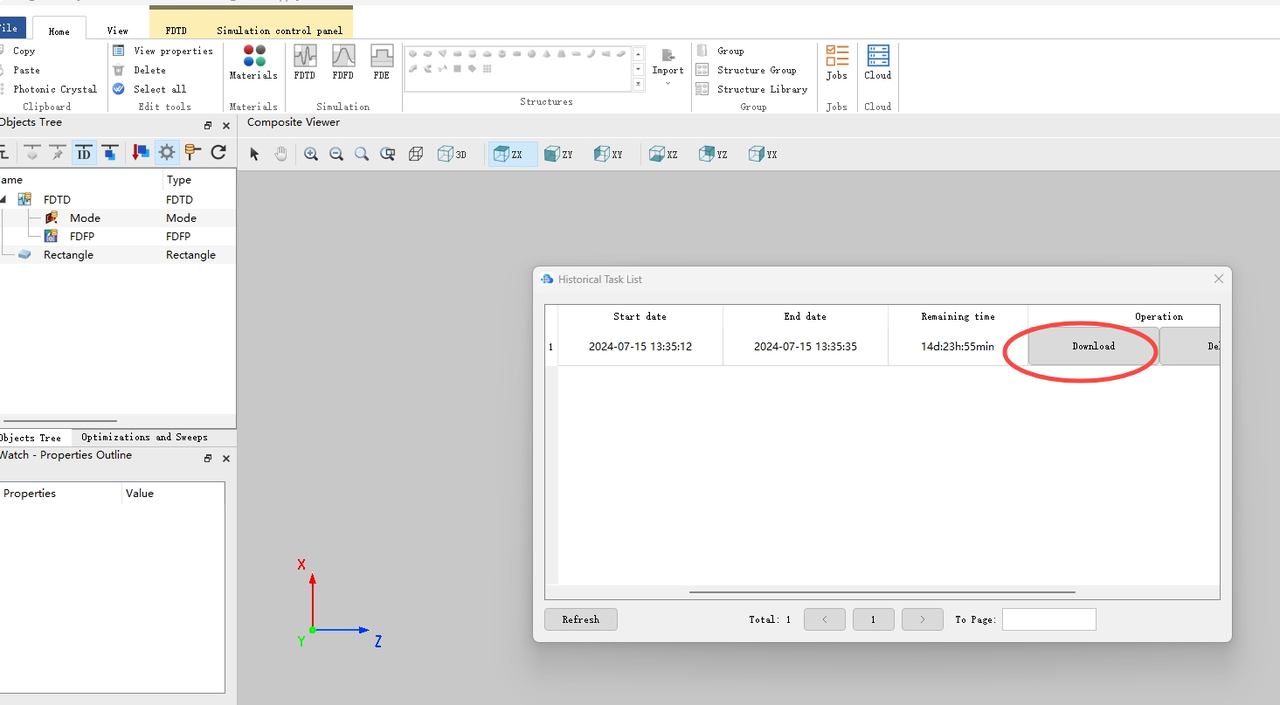
If you choose "Storage 15 days", you can download the simulation project file in the history page.
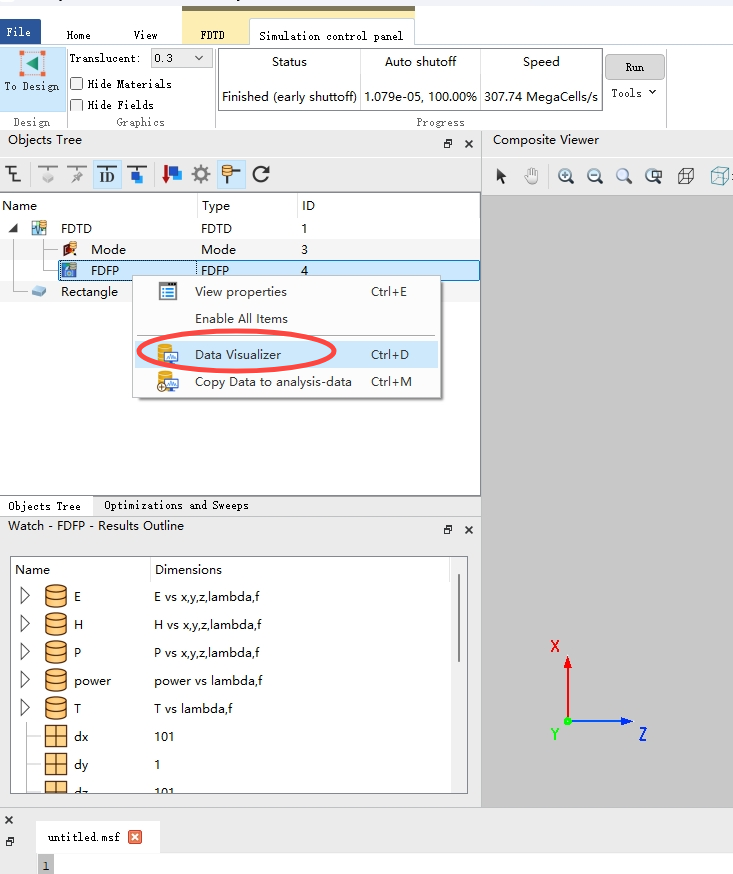
Open the updated project, and you can check your results by click "Data Visulalizer" button.
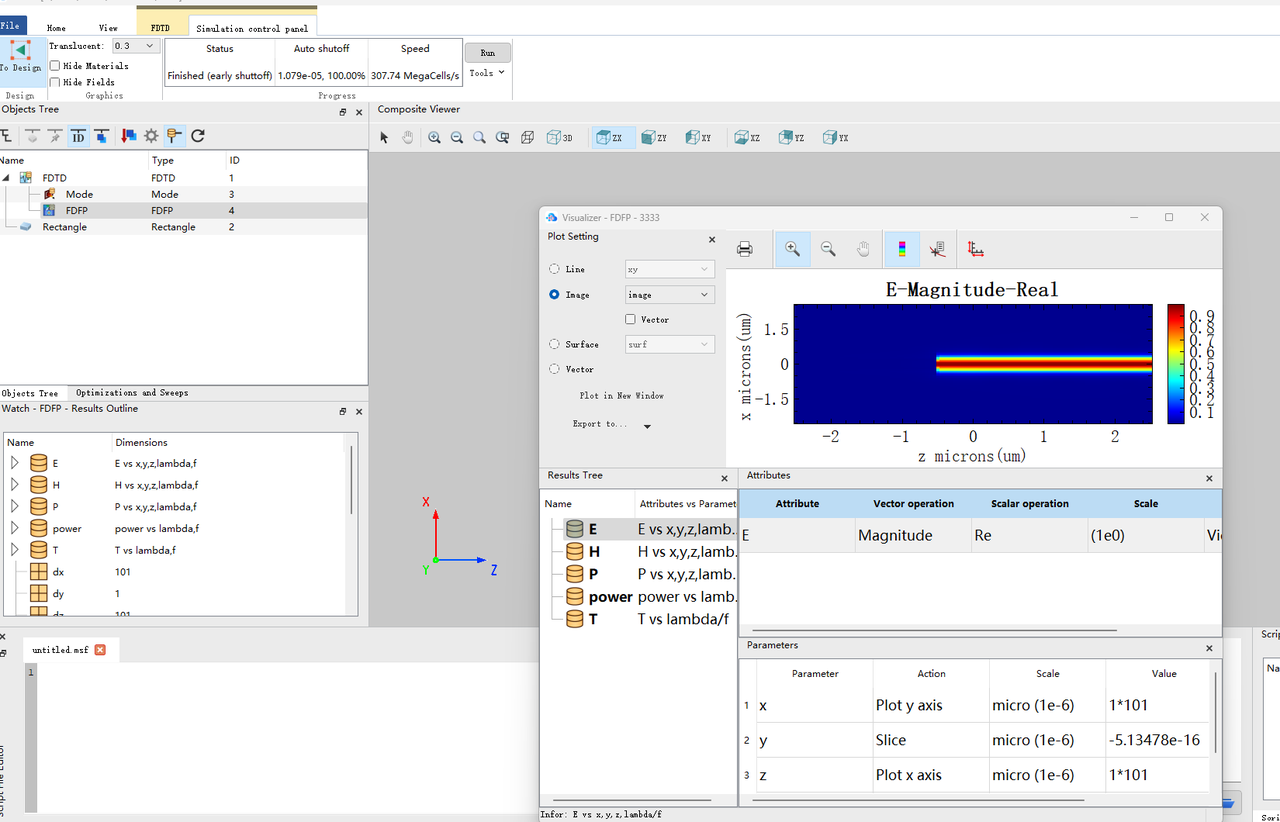
You can also use scripts to control and viewing, or for the further data processing.
Support
If you have any questions about the software, you can log in to the workbench cloud console at https://workbench.simworks.net/ and submit your issue in the "Support" > "New Ticket" section on the left sidebar. We will respond as soon as possible.